A text box can have a transparent, white or black background. The last two options are useful for hiding elements behind a text box.
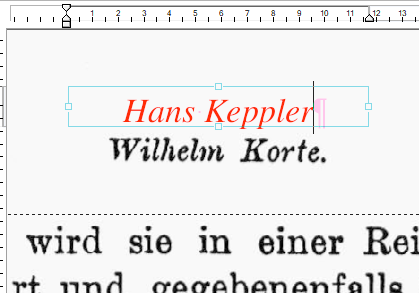
In this example, we would like to cover the name Wilhelm Korte on the scanned page with the new name Hans Keppler.
▪The new text is displayed in red (if the option Show changed text in: red is enabled). For more information, see Highlighting changes).
 |
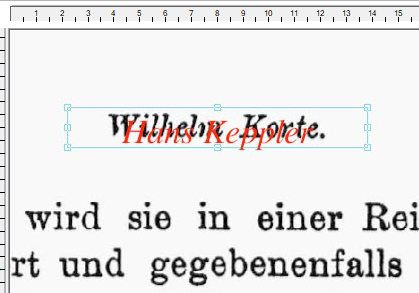
▪If you place the text on the existing name, both names will be visible:
 |
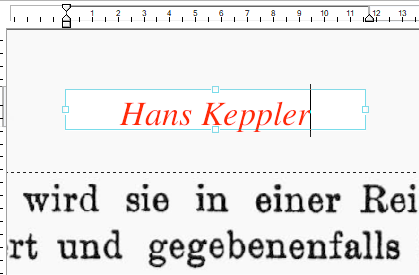
▪Choose the ribbon command Format | group Format | Background color  | White to give the text box a white background.
 |
For the sake of simplicity, FlexiPDF only offers transparent, white and black as background fills.
Tip: If you need a different color, simply use the drawing tools (ribbon tab Insert | group Drawings) to insert a rectangle in the desired color and place it in the layer between the new and old text.