FlexiPDF provides an overview of all comments (notes, stamps, text highlighting) in the PDF.
▪Choose the ribbon command View | group Window | Sidebars  | Comments to show the Comments sidebar. The displayed list is divided into three sections, each containing the same information sorted by:
| - Page |
| - Comment Type |
| - Author |
| Click on the names of the groups to the right of the gray squares to expand them as shown below. Click on them again to collapse them. |
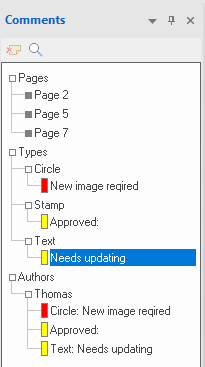 |
Here, you can perform the following actions:
▪Click on a comment in the list to go to the page where it was inserted.
▪Click on a comment in the list, and then click on the Delete comment icon  at the top to remove it from the document.
▪Click on the Find icon  at the top to open the dialog box Find and Replace in Comments.
▪When you edit a comment in the document, the display in the Comments sidebar will be updated accordingly.
▪You can grab the comment bar with your mouse and dock it on to any side of the FlexiPDF program window. Alternatively, you can convert the Comments toolbar into a floating window by dragging it away from the edge of the program window.
Note
▪To change the user name for comments, choose the command File | Options, switch to the Saving tab, and enter the new name in the User name field.