Tabs can be used to create tabular layouts. You can choose between right-aligned, left-aligned and centered tabs. You can also specify whether the tabs should be displayed with or without leaders.

The ruler shows a left-aligned, centered and right-aligned tab.
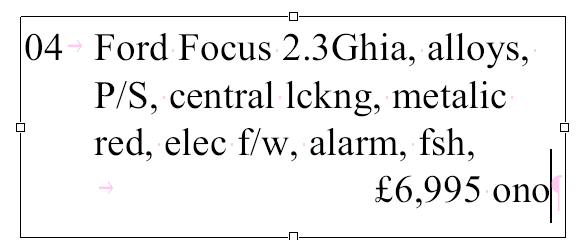
Tab characters appear as pink arrows during editing.
Creating and deleting tabs
First, select the Text edit tool  in the Quick access toolbar and select the desired paragraph in a text box. You can then use the following procedures in the ruler:
▪Click on the position in the ruler where you want to place a tab.
▪Click on and drag an existing tab to move it to a new position.
▪Click on and drag an existing tab directly from the ruler in order to delete it.
▪Right-click on a tab in the ruler to switch between a right, left or centered alignment.
Notes
▪Tabs are retained even after you close and reopen the PDF.
▪Tab positions can also be beyond the right and left margins of the text box.