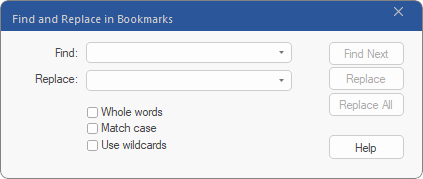
You thus find the names of bookmarks and can optionally replace them with other names:
| 1. | Choose the ribbon command View | group Window | Sidebars  |Bookmarks to display the Bookmarks sidebar. |Bookmarks to display the Bookmarks sidebar. |
| 2. | Click on the magnifying glass icon  in the mini toolbar of the Bookmarks sidebar. in the mini toolbar of the Bookmarks sidebar. |
| 3. | Enter the search term in the Find input field. |
| 4. | Click on Whole words if you want to find complete words and not just parts of words. |
| 5. | Click on Match case if you want it to be considered. |
| 6. | Click on Use wildcards to take advantage of the practical search with wildcard characters: |
| ? means a single character, for example, ?ouse finds the terms house, mouse, louse, etc. |
| * means any number of characters, for example, rai* finds rail, railway, railroad, etc. |
| + means 1 or more arbitrary characters, for example, rail+ finds rails and railway but not rail. |
| 7. | Click on Find Next to jump to the next occurrence of the search term in the bookmarks list. |
| 8. | Replace replaces the name of a bookmark and then jumps to the next occurrence of the search term in the bookmarks list. |
| 9. | Replace All performs all further replacements automatically and without prompts. |
Note
▪Editing the name of a bookmark does not affect the page to which the bookmark refers.