FreePDF: The Insert pages from scanner function is not available in FreePDF.
If your computer is connected to a scanner, you can scan new pages and add them directly to the current document.
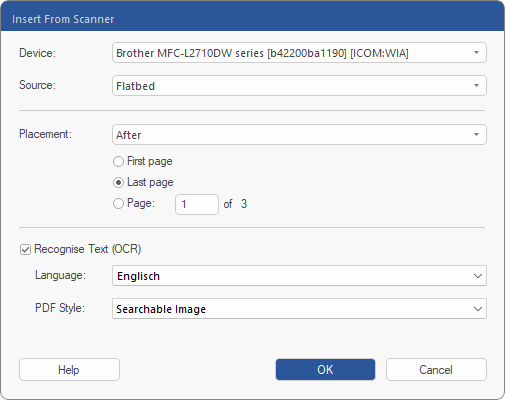
| 1. | To do so, choose the ribbon command Pages | group Insert | From scanner  . . |
| 2. | In the dropdown list Device, select the scanner that you want to use. |
| 3. | If your scanner can be automatically fed multiple pages, change the Source to Automatic Document Feeder. |
| 4. | For Placement, now select where you want to insert the pages. |
| 5. | If Recognise Text (OCR) is enabled, FlexiPDF will attempt to recognise the text of the scanned pages and insert it as "real text". If your scan is a photograph, disable the option and skip the remaining steps. |
| 6. | Select the text language for the scanned pages. This helps FlexiPDF with text recognition. |
| 7. | Select the desired PDF Style: |
| Editable Text if you want to edit the text of the scanned pages. This creates a document without graphics or photos, and the text can be edited normally. |
| Searchable Image if you want to retain the appearance of the scanned pages. The recognized text can be searched but not edited. |
| If errors are made during the recognition process and lead to inaccurate search results, you can use OCR corrections to rectify them. |