Regardless of the user interface in which you work, there is also another way to choose commands: via the context menu (with a "floating" toolbar above it).
They contain different commands depending on the relevant situation. If, for example, you select a cell and then right-click to open the context menu, it offers commands for cutting, copying or formatting that cell.
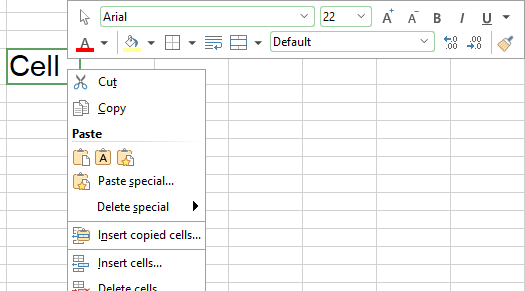
Depending on what you have previously selected (text, objects, tables, etc.), you will be offered a variable – contextual – selection of commands when opening the context menu. This makes it much easier for you to quickly navigate to situational commands without a long search.
Android/iOS: In these versions, you can also open the context menu with your finger: Just tap on the screen and hold your finger there for about a second.
Tip: Configuring the context menu
You can customize the upper part of the context menu, which is the "floating" toolbar, to your liking:
▪Choose the command Customize ribbon  under File | group Settings | Customize.
| Alternatively: Double-click on any empty area of the ribbon. |
▪In the dialog box, select the desired item in the list Customize (top right), starting with "Context:". You can then add or remove buttons from the context menu toolbar and change their sequence. For more information, see Customizing icons and groups in the ribbon.