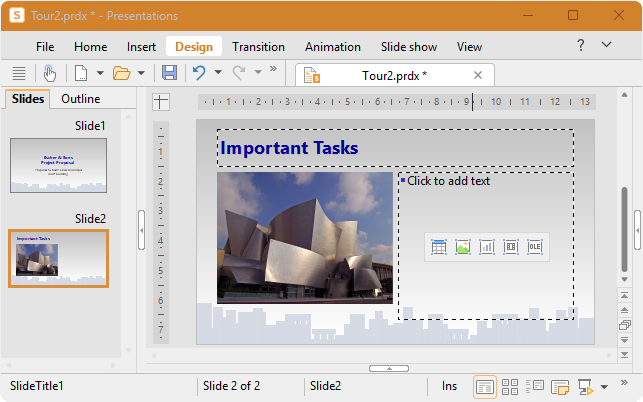
The slide design "City" that we applied at the start is actually very appropriate for our presentation, but its colors don't match the inserted picture. Fortunately, each slide design also includes several appropriate "color themes" from which to choose.
Color themes provide a simple method of instantly changing the coloring of slides (or entire presentations). You determine not only the text color, but also the colors for the background, the filling of drawing objects, etc.
To change the color theme, proceed as follows:
Choose the ribbon command Design | group Theme | Color theme  . (Click directly on the icon itself because this opens the dialog box.) . (Click directly on the icon itself because this opens the dialog box.) |
| If you click on one of the available color themes, you can see a preview of it in the document. The Preview checkbox must be selected in this case. |
| Once you have decided on a color theme, simply click on Apply to all. The colors of all slides in your presentation will now change accordingly. In our example, we select a theme with light gray background and blue element colors. |
The presentation now has a completely different look and the colors of the design also match the colors of the inserted picture better: