On the ribbon tab Home | group Character, you will find the most frequently used commands to change the appearance of single or multiple characters in the text.
Tip: You can also change the character formatting of an entire placeholder by selecting it first.
Common commands: Via the icons of the command group "Character"
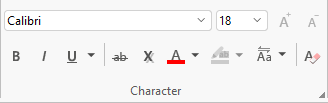
You can use the group icons to directly make the following settings:
▪Text styles (for example, bold, italics, underlined)
▪Font color (and text highlighting)
▪Resetting the character formatting
Additional options: In the dialog box of the command group "Character"
If you click on the group arrow in the bottom right corner of the ribbon tab Home | group Character, the program opens a dialog box in which you will find additional options for character formatting.
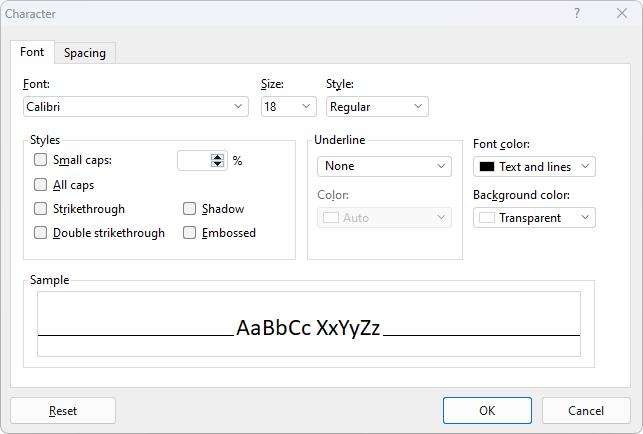
The displayed dialog box has several tabs that you can switch between by clicking on one of the tab headers:
▪Font tab
| For selecting properties like Font and font size, other Text styles and Font color (and background color) |
▪Spacing tab
| For changing properties like Superscripts and subscripts, Letter spacing and character pitch, and enabling/disabling Kerning |
▪Hyperlink tab
| For inserting and editing Hyperlinks (for example, to web pages) |
Changing character formatting
There are two ways to change character formatting:
▪To subsequently change the character formatting, select the desired text and apply the appropriate formatting (font, font size, etc.) via the icons or via the dialog box.
Android/iOS: If you are using these versions, please note that selecting text works slightly differently there. For more information, see Working with selections.
▪To change the character formatting as you type new text, select a different font and then simply continue typing. From that point on, all text that you enter will appear in the new font – until you select a different font again.
See the following pages for more detailed information on character formatting.