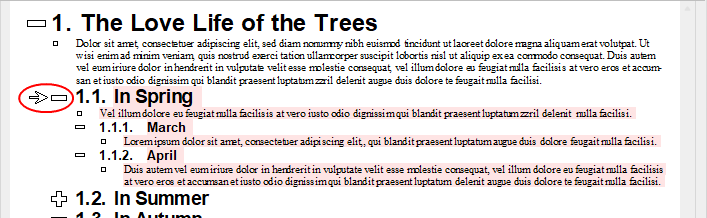
To give a document an outline or to edit an existing outline, switch to outline view and simply change the outline level of the paragraphs that contain headings.
When you enter text into a document, all paragraphs of this text are assigned to outline level 0 by default. If, for example, you assign outline level 1 to a specific paragraph, this paragraph is designated as a first-level heading.
By assigning outline level 1, you determine the main headings in the document. If you want to add subheadings under the main headings, you assign the corresponding paragraphs to outline levels 2, etc.
To change the outline level of a paragraph, proceed as follows:
| 1. | Use the ribbon command View | Outline to open the outline view. |
| 2. | Position the text cursor in the desired paragraph. |
| 3. | Click on one of the following icons on the ribbon tab Outline or use one of the following shortcut keys: |
For Windows/Linux
Icon |
Function |
|
This raises the paragraph's outline level by 1. |
|
This lowers the paragraph's outline level by 1. |
|
This assigns outline level 0 (normal text) to the paragraph. |


Tip: Furthermore, the shortcut keys Alt+1 to Alt+9 are assigned by default to outline levels 1 to 9, and the shortcut key Alt+0 is assigned to level 0 (for normal text). With these key combinations, you can create headings levels 1 to 9 in a flash or convert a heading back into normal text.
Incidentally, these key combinations not only work in the outline view but also in the standard view.
For Mac
Icon |
Function |
|
This raises the paragraph's outline level by 1. |
|
This lowers the paragraph's outline level by 1. |
|
This assigns outline level 0 (normal text) to the paragraph. |
Tip: Furthermore, the shortcut keys Cmd+Alt+1 to Cmd+Alt+9 are assigned by default to outline levels 1 to 9, and the shortcut key Cmd+Alt+0 is assigned to level 0 (for normal text).
Tip: Quickly select entire outline sections
You can also select entire outline sections and raise or lower their outline level by clicking on the plus  or minus
  icon in front of the heading. Thus, you select the heading and all its subordinate text.
Then choose the icons on the ribbon tab Outline described above to raise or lower the level of the entire outline section.
Even faster: Use the mouse to grab the plus or minus icon and move the entire outline section to the left or right to raise or lower its level.