You can completely replace one or more fonts with a different font in your presentation. You might do so for design purposes (because one font looks better than another) or due to a font being unavailable on your system.
To replace the font of the entire presentation, proceed as follows:
| 1. | Choose the ribbon command Design | group Design | Replace font  . . |
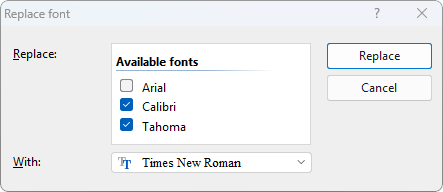
| 2. | Presentations opens the following dialog box with two dropdown lists: |
| 3. | In the upper dropdown list Replace, you will find the font(s) that are included in the presentation. Here, select the font(s) that you want to replace. |
| 4. | Then, in the lower dropdown list With, select the new font that you want to use instead. |
As soon as you press the Replace button, all instances of the relevant font will be replaced throughout the presentation.