Syntax:
UNIQUE(Range [; ByColumn] [; ExactlyOnce])
Description:
This function searches a cell range for duplicate data and returns a list from the range that only contains unique values (each value is only included once).
Range is the cell range or array from which the unique values are to be returned. The range can have one or more columns (or rows for tables that are to be read horizontally).
ByColumn (optional) specifies whether the values are to be compared by row or by column. FALSE searches from row to row and TRUE from column to column. If omitted, FALSE is used as the default value and the table is thus searched vertically.
ExactlyOnce (optional) specifies whether the values should occur only once. If set to TRUE, only the values are returned that occur exactly once in the Range. If omitted, the default value FALSE is used. In this case, the program returns values that occur multiple times in the Range, but they are listed only once ("uniquely") in the result.
Note:
You can also apply the function to multi-column tables and the output range automatically expands to adjacent cells as needed (simply press the Enter key as usual after entering the formula in the cell). In addition, the result is automatically updated when changes are made to the initial list. For this reason, such formulas are also considered to be functions with a dynamic output range.
If you apply the function to multi-column tables and this causes a spill over to adjacent cells in the results area, a #SPILL! error value will be displayed if those cells are already filled with content. Therefore, make sure that the adjacent area is as empty as needed for the intended expansion of the formula.
Compatibility notes:
Microsoft Excel supports this function only in version 2021 or later. The function is unknown in older versions.
Examples:
Example 1: List across one column
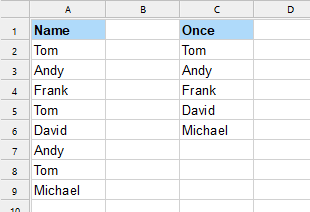
There is a list with multiple first names in column A. Some names occur more than once.
The formula UNIQUE is applied in cell C2:
UNIQUE(A2:A9) returns all names only once, regardless of whether they occur once or several times in the list. All duplicates were removed in the process.
Example 2: List across multiple columns
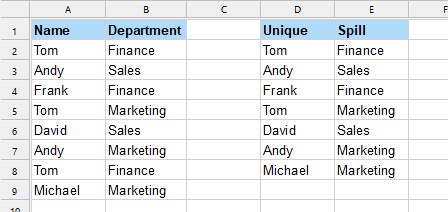
There is a list with multiple first names in column A and their corresponding department in column B. Some names in column A occur multiple times. The corresponding departments in column B can also appear multiple times.
The formula UNIQUE is applied in cell D2. This example shows that the function automatically extends the result to the adjacent column E ("spill"):
UNIQUE(A2:B9) returns all name/department combinations with the exception of the combination Tom/Finance, as this occurs twice and has been removed.
Example 3: List of values that occur exactly once
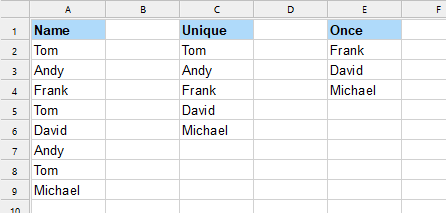
Once again, there is a list as in example 1 with multiple first names in column A. Some names occur multiple times.
As in Example 1, the formula UNIQUE(A2:A9) is applied in cell C2. See the known result in column C.
In cell E2, the formula UNIQUE with the ExactlyOnce parameter is applied by specifying the third argument as TRUE (the second argument FALSE stands for the row-by-row search direction):
UNIQUE(A2:A9, FALSE, TRUE) returns the names that occur exactly once only. All duplications, as well as the value itself that represents the duplication, were removed.
See also: