Syntax:
XMATCH(Crit; Range [; MatchMode] [; SearchMode])
Description:
The program searches a cell range for a search criterion and then returns its position within this cell range.
Note: XMATCH is an improved version of MATCH, as XMATCH works both from top to bottom and vice versa (MATCH works from top to bottom only). In addition, XMATCH returns exact matches by default.
Important: XMATCH uses an exact match by default – unlike MATCH, which expects an approximate search without the sort argument.
Crit is the value for which the search is performed. Both numbers and text or a cell reference are permitted. The search is case-insensitive.
Range is the cell range or array to be evaluated. This can contain either text strings, numbers or logical values. Range must be a range, which is an array or a cell range of either only one row or one column.
MatchMode (optional) controls the type of match. Possible values:
0 = exact match. This is the default value (thus also applies if the argument is omitted). If no exact match is found, the #NV error value is returned.
-1 = If there is no exact match, the next smallest element is returned.
1 = If there is no exact match, the next largest element is returned.
2 = Lets the function know that wildcard characters ("*", "?" and "~") occur in the search criterion.
SearchMode (optional) controls the search direction / search method: Possible values:
1 = Search from top to bottom. This is the default value and thus also applies if the argument is omitted.
-1 = Search from bottom to top.
2 = Perform a binary search (fast with large data sets) – requires sorted data in ascending order.
-2 = Perform a binary search (fast with large data sets) - requires sorted data in descending order.
Compatibility notes:
Microsoft Excel supports this function only in version 2021 or later. The function is unknown in older versions.
Examples:
Example 1: Simple search with exact match
You have a list of names and want to know in which position a particular name appears.
The formula XMATCH is applied in cell D2:
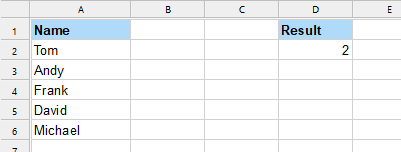
XMATCH("Andy", A2:A6) returns 2, as Andy is in second position in the list.
Example 2: Approximate search using the "MatchMode" parameter
You have a list of names and their sales volume and want to know how many people are eligible for a bonus that starts at a sales volume of 10,000.
The formula XMATCH is applied in cell E3:
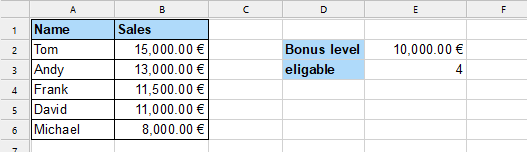
XMATCH(E2, B2:B6, 1) returns 4, as the position of the next largest element (in the search range: 11,000) is returned if there is no exact match and the MatchMode (with value 1) is used.
Since the list of sales is sorted in descending order, all persons above the 4th position are eligible for a bonus.
Tip: For the search criterion, there are generally the alternative options of specifying it as an expression (e.g., "Andy" as in example 1) or as a cell containing the value you are looking for (as here, for example, with cell "E2").
See also: