You can create any number of your own color themes for each presentation.
To create a new color theme, choose the ribbon command Design | group Theme | Color theme  (click on the icon itself) and then select the New button in the dialog box.
This will open another dialog box for editing the individual colors:
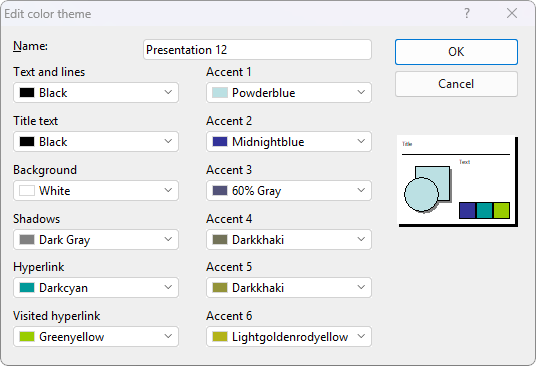
You can now change the colors of the different elements of your presentation as you like. To do so, open the corresponding dropdown list and select the desired color. The thumbnail in the bottom right corner of the dialog box shows the currently set colors.
Tip: Color lists only offer a few standard colors, but you can always compose your own colors. To do so, click on More colors at the end of the respective dropdown list.
The program displays a dialog box in which you can select any color you like. You can even save colors that you need frequently under a name of your choice. For more information on this dialog box, see Colors.
Once you have selected the desired color, click on OK.
Edit an existing color theme: Of course, you can also change existing color themes in the open dialog box of the ribbon commands Design | group Theme | Color theme. To do so, click on the theme to be changed and then click on the Edit button. (Note: The color themes in the lower "Additional themes" section are predefined and thus cannot be edited.)
This will open the above dialog box for editing the individual colors.
Note: Color themes are always saved in the current presentation and are not available in other presentations.