To apply a color theme to slides, choose the command Design | group Theme | Color theme  . (Click on the icon itself.)
Tip: If you want to apply a color theme immediately without further editing, click on the icon's arrow and apply the desired color theme directly from the dropdown menu. The entry More color themes will take you to the dialog box below with additional options.
The following dialog box appears:
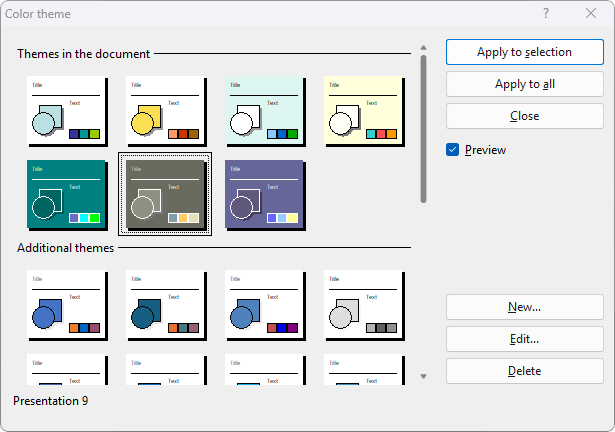
The dialog box offers all available color themes. If the option Preview is enabled, a preview of the slide color theme appears in the document when you click on a color theme. This lets you judge how well a color theme suits your presentation before you apply it.
To apply a color theme, simply select it and click on the Apply to selection button. The color theme is now applied to the current slide (or to all selected slides if you have previously selected some in the mini sorter).
Alternatively, you can assign the selected theme to all slides of the presentation by clicking on the Apply to all button.
The description of the New and Edit buttons can be found in the next section.
Tip: Using the sidebar
The color theme can be changed even faster using the sidebar, which is displayed to the right of the slide by default.
To do so, click on the icon in the small toolbar above the sidebar. The sidebar now displays a list of all available color themes. Simply click on one of them, and it will be applied immediately to the current slide.
Below the list, you will also find buttons for creating a new color theme or for editing or deleting the current color theme.
For more information on the sidebar, see Using the sidebar.